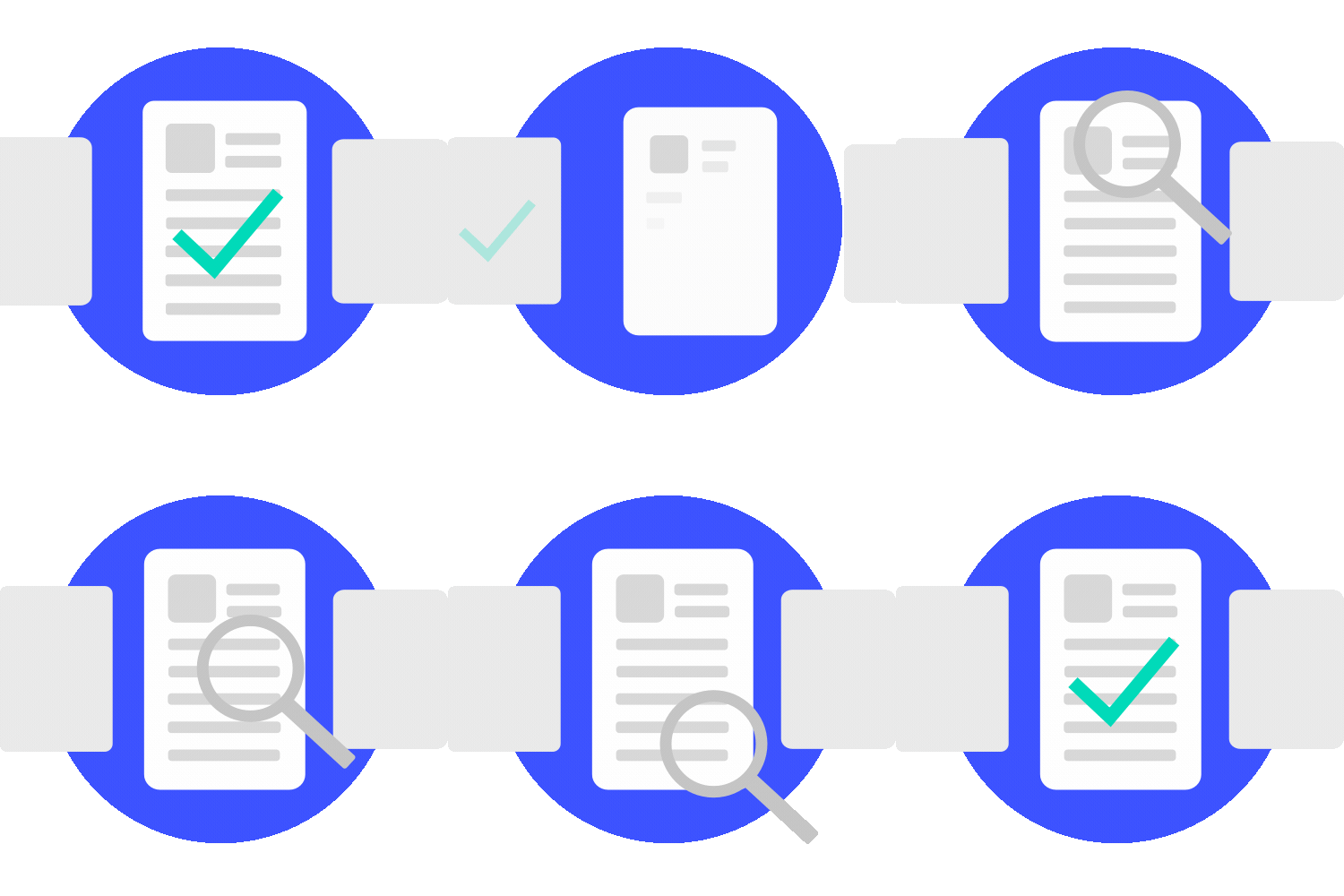

Napkin AI is an AI tool that turns text into diagrams, flowcharts, infographics, and presentation visuals. It is especially useful when you do not want to start from a blank canvas and instead want to turn clear writing into something visual very quickly.
This guide covers what Napkin AI is, pricing, Chinese-language use, export options, ideal use cases, tool comparisons, and how it can support SEO and AI SEO / GEO content.
ORCABIZ CONSULTANT NOTE
OrcaBiz note: For tools like Napkin AI, we first look at which part of the workflow it can improve and what its limits are before deciding whether to use it in an article, presentation, or proposal workflow. It is especially useful when you need a clearer visual explanation of text-heavy content.
Quick summary
- What it is: an AI tool that turns text into visual diagrams, flowcharts, infographics, and presentation materials.
- Best for: presenters, marketers, SEO editors, content creators, teachers, consultants, and sales teams.
- Chinese support: yes, but short sentences, bullets, and clear structure work best.
- Free or paid: Napkin AI currently offers Free, Plus, and Pro plans, with differences in AI credits, export formats, brand styles, and customization.
- SEO use: turn article highlights, process steps, comparisons, and FAQs into visuals to improve readability and referenceability.
What is Napkin AI?
Napkin AI describes itself as a “visual AI for business storytelling.” Its workflow is simple: paste or import text, select the part you want to visualize, and Napkin generates multiple visual layouts that you can customize with brand colors, fonts, icons, and spacing.
It is especially good for content that has a clear logic but feels too heavy to read as plain text, such as feature comparisons, service workflows, pitch decks, course outlines, industry trends, SEO article sections, and data insights.
Main features
- Text to visual: turn paragraphs, bullet lists, and outlines into diagrams or infographics.
- Editable output: change text, icons, colors, layout, and style after generation.
- Presentation-friendly: supports PowerPoint import and export workflows.
- Brand styling: paid plans add Brand Styles, watermark removal, and font uploads.
- Data charting: newer chart types like Sankey, Waterfall, Funnel, Grouped / Stacked Bar, and Dumbbell charts are supported.
Pricing and plan changes
Napkin has moved beyond the “fun free beta” stage and is now closer to a real business tool. The official pricing page currently shows Free, Plus, and Pro plans with different AI credit limits, export options, and branding controls.
| Plan | Key points | Best for |
|---|---|---|
| Free | Weekly AI credits, unlimited visual editing, import support for PPT / DOC / PDF / HTML / MD, and PNG / PDF export, but Napkin branding stays visible. | First-time testing, small content pieces, internal drafts |
| Plus | More monthly AI credits, PPT / SVG export, 3 Brand Styles, bold icons, no Napkin branding, and team billing / management. | Marketing teams, SEO editors, presentation workflows |
| Pro | Even more credits, unlimited custom branding, font uploads, team management, and optional top-ups. | Organizations that need a stable branded visual system |
If you only need occasional visuals for articles, Free is a good start. If you plan to use Napkin visuals in client presentations, social assets, or branded content, Plus or Pro is often the better fit.
How to use Napkin AI
1. Create an account and sign in
Go to the official Napkin AI website and create an account with Google or email.
2. Paste a short, clear piece of text
Napkin AI works best when the source text is organized. Short sentences, headings, bullets, and clean logic usually produce much better results than a long unstructured paragraph.
3. Select the part you want to visualize
After selecting text, Napkin proposes visual layouts. If you want stable results, use bullet-style source writing rather than emotional long-form prose.
4. Fine-tune and export
Adjust the text, icons, colors, background, layout, and export format. PNG is often enough for articles, while PPT or SVG is more convenient for presentations if your plan supports it.
Best use cases
Napkin AI is not here to replace designers. It is best used to turn text-heavy content into something easier to understand.
- Presentations: workflows, service structures, product benefits, timelines.
- Education: lesson steps, learning paths, knowledge frameworks.
- SEO content: process diagrams, comparison charts, FAQs, and summary visuals.
- Social content: turn key points into cards or mini-infographics.
- Medical / health content: turn treatment flows or educational points into clear visuals, with professional review before publishing.
Napkin AI works best when the writing is already organized. If the logic is messy, you should fix the text first and then generate the visual.
How Napkin AI supports SEO and AI SEO / GEO
Napkin AI does not replace article content. It helps turn already-organized points into easier-to-understand visuals. For readers, that means a quicker grasp of the workflow, comparison, or conclusion. For search engines and AI search systems, the text context still needs to remain complete.
- Top of article: a quick summary diagram helps readers understand the page faster.
- Tutorial sections: process diagrams reduce bounce and make steps easier to follow.
- Comparison sections: use tables or diagrams for pricing and feature differences.
- FAQ sections: visual FAQ summaries can make the structure easier to read.
- Social distribution: turn article highlights into shareable cards and send readers back to the post.
The best workflow is: write the article first, then use Napkin AI to visualize the key points. Do not rely on pretty graphics alone to support a weak article.
Comparison with other tools
| Tool | Strength | Best use | Difference from Napkin AI |
|---|---|---|---|
| Napkin AI | Text-to-visual diagrams | Article visuals, pitch diagrams, process charts | Best for turning existing text into editable visuals |
| Canva | Templates and brand design | Social graphics, presentations, posters | Broader design system, not focused on text-to-diagram first |
| Gamma | AI presentations | Fast slide decks and reports | Whole presentation generation, not single visual explanation |
| Whimsical | Flowcharts and whiteboards | Process planning and team collaboration | More for collaboration, less for content visualization |
| Google AI Studio | Prompt testing and AI prototyping | Organizing material before visualization | Useful for preparing text before sending it to Napkin |
If you need to make an entire presentation, Gamma or Canva may be faster. If you want to turn one block of writing into a clean visual explanation, Napkin AI is usually more direct.
Best workflow
| Step | Recommended action | Why |
|---|---|---|
| 1. Organize the text | Turn the article into short headings, bullets, workflow steps, or comparison tables. | Napkin AI can identify the structure more easily. |
| 2. One section at a time | Do not paste the whole article at once. Start with one H2 or one process. | Helps reduce credit usage and improves output quality. |
| 3. Check logic first | Make sure the visual matches the message before changing colors or icons. | Pretty visuals with wrong logic are not useful. |
| 4. Review after export | Check for truncated text, translation issues, numbers, and terminology. | AI visuals are drafts; human review is still needed. |
FAQ
Q1: What is Napkin AI?
A: It is an AI tool that turns text into visual diagrams, flowcharts, infographics, and presentation materials.
Q2: Is Napkin AI free?
A: Yes, there is a Free plan, and paid plans add more credits and better export / branding options.
Q3: Does it support Chinese?
A: Yes, but short sentences and a clean structure give much better results.
Q4: Can it export to PowerPoint?
A: Yes, depending on the plan, it can support PPT / SVG export.
Q5: Is it good for SEO article visuals?
A: Yes. It can turn article highlights into diagrams or summaries that improve readability.
Q6: What makes it different from Canva or Gamma?
A: Napkin AI is strongest when you already have text and want to turn that text into a visual explanation.